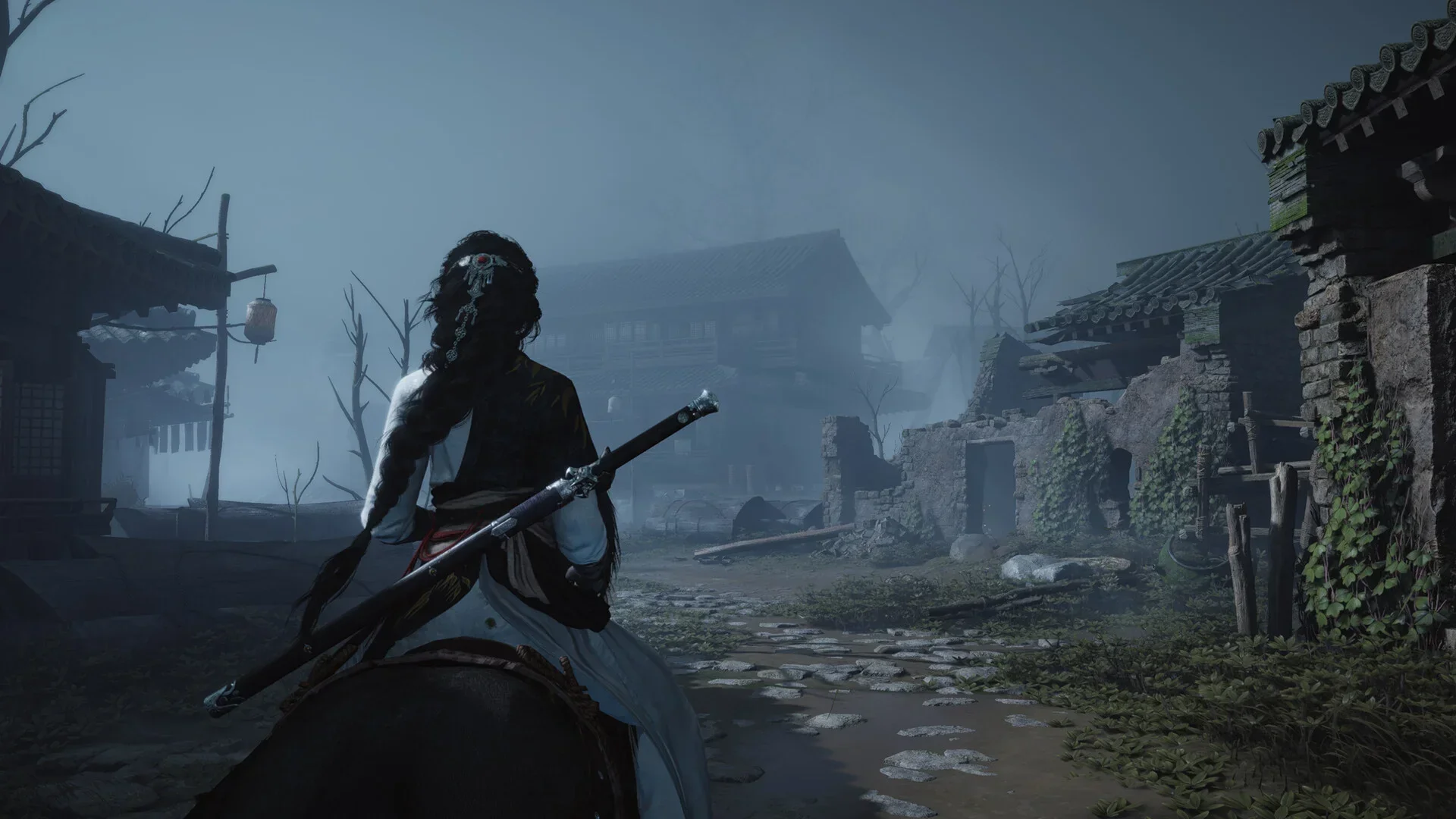
Launched Where Winds Meet only to watch your gaming rig struggle like it’s running a NASA simulation? You’re definitely not alone. This visually stunning title looks incredible, but it comes with serious performance demands.
Where Winds Meet joins the ranks of ambitious open-world games that push hardware to its limits. Between the sprawling landscapes, intricate physics systems, and intense martial arts sequences, your PC might feel like it’s preparing for takeoff. The good news? You don’t need cutting-edge hardware to enjoy smooth gameplay. The real problem is trusting those “Auto-Detect” settings that consistently get it wrong.
After extensive testing across different configurations and diving deep into the settings menu, we’ve identified the optimal balance between stunning visuals and reliable performance. Let’s get your game running smoothly.
 EU5 Government Guide: Societal Values Explained
 Table of Contents
The Golden Rule: System Prep First
Your operating system needs proper configuration before you even launch the game.
DirectX 12 is Mandatory: Always choose the DX12 version when launching through Steam. This unlocks essential features including Frame Generation and superior upscaling technologies.
Game Mode: Navigate to Windows settings and enable “Game Mode.” This prevents Windows from prioritizing background processes and updates during your gaming sessions.
Power Plan: Switch your Windows power plan to High Performance. “Balanced” mode throttles your CPU unnecessarily. Your processor needs to maintain maximum clock speeds for optimal performance.
 ARC Raiders on Steam Deck: The Complete Settings and Performance Guide
 The Best Display Settings (The FPS Savers)
These settings eliminate the micro-stuttering that disrupts precise combat timing.
Display Mode: Use Fullscreen exclusively. Windowed or Borderless modes introduce input delay and inconsistent frame pacing.
Resolution: Match your monitor’s native resolution for optimal clarity.
V-Sync: Disable this completely. If frame capping is necessary, use alternative limiters. V-Sync creates input latency that’s particularly problematic in fast-paced martial arts combat.
Motion Blur: Turn it off. Clear enemy animations are crucial; motion blur only obscures important visual information.
Super Resolution:
- NVIDIA Users: Configure DLSS to Quality mode.
- AMD Users: Set FSR to Quality mode.
Reserve “Balanced” mode for emergency FPS boosts. Avoid “Performance” mode entirely unless you can tolerate significant visual degradation.
 My Winter Car How to Call: Complete Phone Guide 2026
 The Graphics Settings That Actually Matter
Strategic optimization beats blanket “Medium” settings every time. Some options devastate performance for minimal visual improvement, while others provide excellent value.
Ambient Occlusion: Set to High. This enhances environmental depth perception with minimal performance impact when paired with DLSS/FSR.
Tessellation: Keep it Low. The visual enhancement is barely noticeable, but the performance penalty is substantial.
Vegetation Quality: Medium delivers the optimal balance. “Low” creates barren-looking environments, while “High” crushes CPU performance. Medium maintains visual richness efficiently.
Lighting Quality: Medium provides excellent results. High-quality lighting looks marginally better but consumes double the GPU resources. Medium delivers 90% of the visual quality at half the cost.
View Distance: Medium is crucial. High settings force your CPU to process distant objects unnecessarily. Medium maintains acceptable horizons without overwhelming your processor.
Effect Quality: Set to Low for combat stability. During intense battles with multiple particle effects, “High” settings cause severe frame drops. Low settings keep particle counts manageable while preserving smooth performance during critical moments.
Real-Time Sunlight: Disable unless you’re running premium GPU hardware. This feature significantly impacts frame rates without proportional visual benefits.
 My Winter Car Beginner’s Guide: Everything You Need to Know to Survive 1999 Finland
 NVIDIA & AMD Specific Tweaks
RTX 40-Series Cards: Enable Frame Generation for immediate performance gains. Keep the multiplier at 2x higher settings introduce noticeable input lag. Activate NVIDIA Reflex simultaneously to minimize input latency.
AMD Hardware: Utilize FSR 3 or 4 if supported by the game. Enable Radeon Chill to cap frame rates slightly below your monitor’s refresh rate (targeting 141 FPS on 144Hz displays, for example) to manage temperatures effectively.
 McDonald’s Pokemon Cards 2026: Complete 30th Anniversary Guide
 Camera & Audio: The Quality of Life Upgrades
Performance optimization extends beyond graphics settings into gameplay mechanics.
Camera Zoom: Configure to Wide. Group combat requires awareness of flanking enemies. The default camera creates tunnel vision during multi-opponent encounters.
Camera Direction Correction: Disable this feature (set to Close/Off). Automatic camera adjustments interfere with manual control. Full camera control is essential for combat precision.
Audio: Disable Background Audio (set to Close/Off). This prevents sound playback when you alt-tab, useful for multitasking. Additionally, reduce Music volume to approximately 80% so combat sound effects which provide crucial timing cues remain prominent.
 How to Build My Winter Car Corris Rivett – ALL PARTS & ASSEMBLY PROCESS EXPLAINED
 Troubleshooting: Finding Your Bottleneck
Still experiencing performance issues? Launch Task Manager (Ctrl+Shift+Esc) during gameplay to identify the problem.
GPU at 99% usage? Your graphics card is fully utilized, which is normal. If FPS remains low, reduce resolution or apply more aggressive upscaling.
GPU hovering around 60% with poor FPS? You’re CPU-limited. Immediately reduce Vegetation Quality and View Distance these settings stress processors heavily.
Where Winds Meet delivers an exceptional Wuxia experience that deserves smooth, consistent performance. These optimization techniques will let you focus on the martial arts action instead of wrestling with frame rate issues.
 Cloudheim Starter Guide: Stop Hoarding and Start Kicking